3. Creating a simple model
In this exercise we will be creating a simple model with /docs/user_manual/processing/modeler. In this exercise you will work with Model Builder yourself. This is an important tool since you will use it often in Chapter 3 of this practical. Here you will automate a series of operations so that they can be executed with just one click. It will also allow you to make changes to parameter settings and then quickly re-run the model. This allows you to compare changes in your model output and link them to the changes that you made earlier. In this exercise, you will create a model that determines the Topographic Position Index (TPI) of a DEM. The TPI is given by the equation:
The TPI can be used to determine whether a location is on a ridge or valley. This can be useful when you are creating your own adaptation strategies!
As you can see in Fig. 3.1, the TPI can differ, based on the radius. This is useful so you can distinguish between large and small features.

Fig. 3.1 Topographic index depends on Neighborhood size. (https://landscapearchaeology.org/2019/tpi/)
3.1.  implementing the model with
  r.neighbors
Since  is a bit difficult and has different versions, the preferred way to
implement the TPI is to use r.neighbors. This is a focal
statistics algorithm: it takes all cells in a neighborhood around a cell and uses them
to calculate the value for a cell.
is a bit difficult and has different versions, the preferred way to
implement the TPI is to use r.neighbors. This is a focal
statistics algorithm: it takes all cells in a neighborhood around a cell and uses them
to calculate the value for a cell.
3.1.1. Follow Along: Adding the annulus mask script to the toolbox
The r.neighbors algorithm does not support an annulus as area
by default. However, it provides the possibility to use a mask file. That is a
.txt file that for \(r_i=1,r_o=3\) looks something like this:
0 0 0 1 0 0 0
0 1 1 1 1 1 0
0 1 1 1 1 1 0
1 1 1 0 1 1 1
0 1 1 1 1 1 0
0 1 1 1 1 1 0
0 0 0 1 0 0 0
Where all \(1\)’s are taken into account. The script that we need creates this file for us. In Follow Along: Creating a script for the mask file we will be making this script ourselves. You can also directly copy it from the convenience scripts.
extract the convenience scripts to a location of your choice.
In the processing toolbox, click the
 Add script to toolbox…
and select the
Add script to toolbox…
and select the annulus_r_neighbors.pyfile.The script should now be added to your toolbox.

3.1.2. Follow Along: Getting the model inputs
In the Processing toolbox, select


The following window will show:

Fig. 3.2 The canvas. Enter
01_update_landuseas name andpre-processingas group.Our TPI model needs three inputs:
A Digital Elevation Model (DEM) raster
The inner radius for the zonal statistics
The outer radius for the zonal statistics
In the Inputs pane, scroll down until you see
 Raster Layer. drag it into the model view. The
following dialog will show:
Raster Layer. drag it into the model view. The
following dialog will show:
Enter
DEMas name and press OK.Note
The checkboxes define how the inputs are shown when you open a model:
Your created model will not run without
 Mandatory
inputs
Mandatory
inputs advanced inputs will be under a drop-down menu
Drag a
Number into the modeler. Give it a:Description:
Outer radiusNumber type:
IntegerMinimum value:
1Default value:
3
Your modeler should now look like this:

Fig. 3.3 Model with only inputs
Tip
Snapping You can enable snapping by
|TY| Add another input for the inner radius.
Name the model
Topographic Position Index (TPI)and Save
it with a logical name such as
Save
it with a logical name such as tpi.model3close the modeler for now
3.1.3. Adding the processes to the TPI model
Now we have all the processes we need, it is time to add them to our model!
Click Algorithms (highlighted in Fig. 3.3).
Search for your script and drag it into the modeler. Fill it in like this:

You can change the type of variable by clicking the highlighted
. You can then choose from: Value A value
- Input An input to your model ()
 Algorithm output The output of an algorithm
 Pre-calculated value An expression that will be
evaluated when you run the model
Pre-calculated value An expression that will be
evaluated when you run the model
Next, drag in the
r.neighbors algorithm. The mask option
we are using is an advanced parameter. Click the
Show avancedparameters button. Then fill it in like this:Using model input:
DEMNeighborhood operation [optional]:
averageNeighborhood size (must be odd) [optional]:
outer radiusFile containing weights [optional]:
"annular mask" from algorithm "annulus mask for r.neighbors"
press OK
Note
For some reason, the  native raster calculator does not work well with output
of Saga or Grass algorithms. Please use the
native raster calculator does not work well with output
of Saga or Grass algorithms. Please use the  gdalrastercalculator for
this exercise. Instructions are still added, because you may find it more
intuitive to use than the GDAL version later on in the manual. However, I used the gdalrastercalculator for everything.
gdalrastercalculator for
this exercise. Instructions are still added, because you may find it more
intuitive to use than the GDAL version later on in the manual. However, I used the gdalrastercalculator for everything.
Drag the
gdalrastercalculator into the view. Fill in the dialog
as follows:Input layer A:
DEMNumber of raster band for A:
1This is for multi-band rasters. Since our raster only has one band, we want that to be \(1\).Input layer B:
"neighbors" from algorithm "r.neighbors"Number of raster band for B:
1Calculation in gdalnumeric syntax:
A-B Calculated:
 TPI
Your model should now look like this:
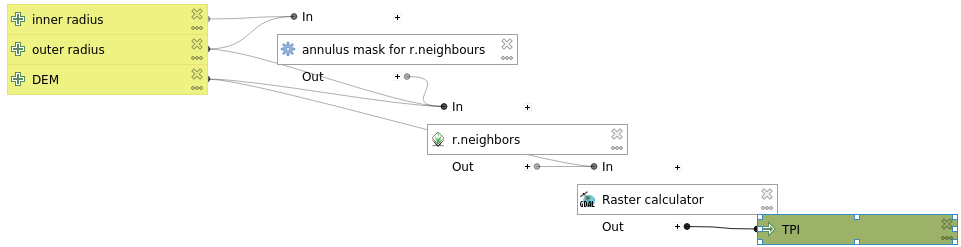
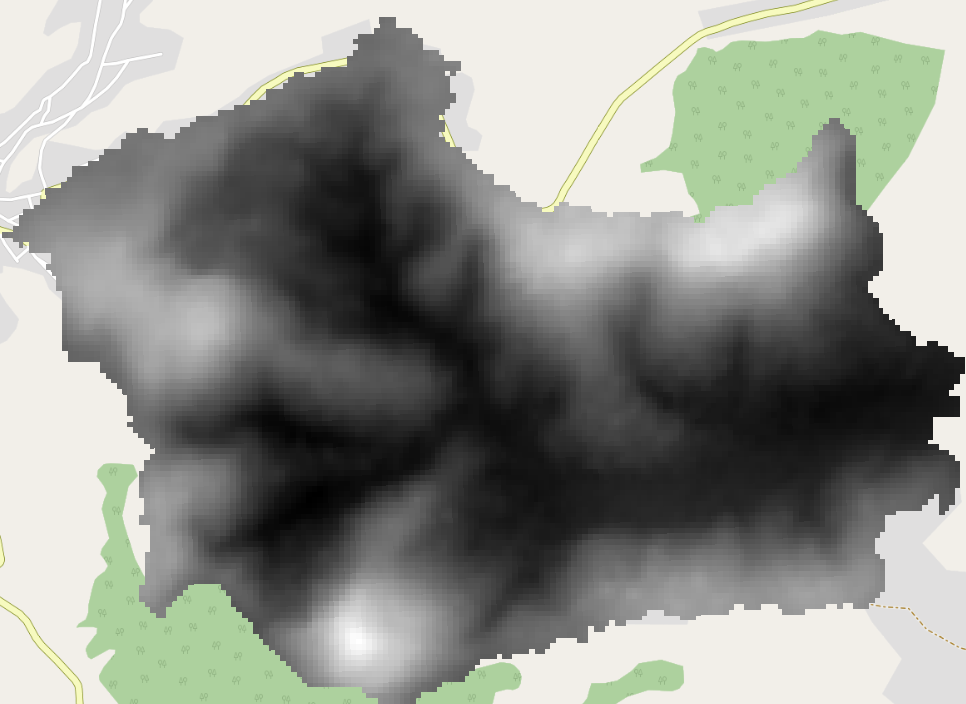
Run your model with \(r_i=62,r_o=67\). Your output should look like this:
3.2. Implementing the algorithm with Focal statistics
Warning
The following section was written for  QGIS with SAGA 7.8. This
version has different algorithms available than
QGIS with SAGA 7.8. This
version has different algorithms available than 
 version
7.3. In that case, use the :r.neighbors algorithm.
version
7.3. In that case, use the :r.neighbors algorithm.
In the Processing toolbox, select
The following window will show:
Our TPI model needs three inputs:
A Digital Elevation Model (DEM) raster
The inner radius for the zonal statistics
The outer radius for the zonal statistics
In the Inputs pane, scroll down until you see
Raster Layer. drag it into the model view. The
following dialog will show:
Enter
DEMas name and press OK.Note
The checkboxes define how the inputs are shown when you open a model:
Your created model will not run without
Mandatory
inputs- advanced inputs will be under a drop-down menu
Drag a
Number into the modeler. Give it a:Description:
Outer radiusNumber type:
IntegerMunimum value:
1Default value:
3
Your modeler should now look like this:
Fig. 3.4 Model with only inputs
Tip
Snapping You can enable snapping by
Now, we are going to include our first algorithm.
Click Algorithms (highlighted in Fig. 3.4).
Search for
Focal Statistics, drag it into the view and
fill in the pop-up window as follows:Under Grid, press the
drop-down and select
Model Input. It should be on DEMalready since this is the only raster type model input.Include Center Cell:
NoKernel Type:
[1] CircleRadius:
Outer radiusthe rest on default settings
Press OK
Your model should now look like this (with some rearranging):

Note
For some reason, the native raster calculator does not work well with output
of Saga algorithms. Please use the gdalrastercalculator for
this exercise. Instructions are still added, because you may find it more
intuitive to use than the GDAL later on in the manual
Drag the
gdalrastercalculator into the view. Fill in the dialog
as follows:Input layer A:
DEMNumber of raster band for A:
1This is for multi-band rasters. Since our raster only has one band, we want that.Input layer B:
"Mean value" from algorithm "Focal Statistics"Number of raster band for B:
1Calculation in gdalnumeric syntax:
A-B- Calculated:
TPI
Raster calculator
Drag the
Raster calculator into the view. Fill in the
dialog as follows:Expression:
"DEM@1"-"'Mean Value' from algorithm 'Focal Statistics'@1". Get the names by double-clicking them in the Layers list.Reference Layers (…): .
- Output:
TPI
and press OK.
Note
In
DEM@1, the@1refers to Band 1. Thus, the raster calculator supports operations on rasters with multiple bands.
Press OK to add it to the model. It should now look like this:

Before we can save our model, we have to give it a name. Below Model Properties, give it the Name
Topographic Position Index (TPI)Save your model by pressing the
icon or Ctrl+S. Give it a
descriptive name.
3.3. Running the model
Note
Currently (Oct 2021), layers from a GeoPackage cannot be selected as raster inputs in the Graphical Modeler. See the related Feature request and a Possible workaround . However, we will be working around this by loading our data into the project first.
Load the Hadocha_dem layer into your map if it isn’t there yet.
Now we have created the model, it is time to run it! There are two ways to do so:
From within the Graphical Modeler:
Press the
 button or F5.
From the Processing Toolbox:
Notice that there is a new drop-down menu labeled
Models. There, your model named
Topographic Position Index is shown. Run it
like any other tool!
Either way, now select
Hadocha_DEMas DEM. and outer radius3. Run the model and your output should look like this:
3.4. In Conclusion Wrapping up
Now, you have learned how to use the graphical modeler and to calculate the Topographic Position Index. Both are very useful. We will excessively use the Graphical Modeler later for the MMF erosion model, and you could use the TPI for determining where to apply specific measures.