4.2. Pre-processing the data
In GIS you always need to process the raw data, to make it suitable as input for your application. We consider this as the first step in the process. In total there are three different phases: the pre-processing phase, where the input data will be created from the raw data. The second phase is the processing, where every step in the MMF method will be completed. The last phase is combining the different steps to the complete model.

Fig. 4.1 Flowchart for the complete preprocessing workflow.
4.2.1.  Managing files for processing
Even though GeoPackages are very useful for easy sharing of data, there are some small quirks when opening rasters from them for models we made ourselves. Therefore, we will be dumping all our rasters in a folder.
Create a folder
01_inputinsideGIS_files.
4.2.2. Follow Along: Updating Hadocha_landuse
Since updating the landuse map has the shortest workflow, we’ll work on that
first. The data in data/Hadocha_landuse.xlsx still needs some editing.
4.2.2.1. Pre-processing the tabular data
Open
data/Hadocha_data.xlsxin a spreadsheet editor like Libreoffice CalcIn the landuse_properties_table tab, have a look at the data. As you can see, the Cropland data is not annual, but hs different values for each month. Since the MMF model is annual, we need annual data. Calculate the annual intercepted rainfall (\(A\)) by:
(4.1)\[A = \frac{A_{sow}*M_{sow}+A_{grow}*M_{grow}+A_{after}*M_{after}}{12}\]Where \(A_{sow,grow,after}\) is the intercepted rainfall for that period (sowing, growing and after harvest) and \(M_{sow,grow,after}\) the number of months in each period.
Calculate the other other factors by substituting \(A\) in (4.1)
Make sure to name the row
Cropland
Note
The rows will later be used to perform a qgisjoinattributestable operation. This will give the Cropland features of Hadocha_landuse the values of landuse_properties_table. This will only work if both rows have exactly the same names.
4.2.2.2. Joining the data
Even though the join operation is only a single operation, we will put it inside a model, so we can immediately rasterize the data afterwards.
Create a new model named
01 update landuseand Save it.
We need the following inputs:
Vector Layer
Description landuse
Geometry type

Polygon Mandatory
 Advanced
Vector field
Description
Landuse join fieldParent layer
LanduseAllowed data type
String- Accept multiple fields
Default value:
FEATURE
Vector Layer
Description
Landuse propertiesGeometry type
No geometry required
Vector field
Description
landuse properties join fieldParent layer
Landuse propertiesAllowed data type
String- Accept multiple fields
Default value:
Landuse
Drag the
 qgisjoinattributestable algorithm into the modeler.
Input layer:

LanduseTable field:
Landuse join fieldInput layer 2:
Landuse propertiesTable field 2:
Properties table join field Joined layer [optional]:
 Landuse_joined
 Run the model and look at the attribute table. It should look like
this:
Run the model and look at the attribute table. It should look like
this:
Note that there may be additional, unnecessary columns like
Field9with allNULLvalues. These are okay.Note
It may be that your Cropland row will have all NULL values. If that is the case, check:
If you have calculated the values
It may be that the values don’t load if they are a formula. This should be a bug and is hopefully solved soon. Replace your formulas with the resulting numbers!
4.2.2.3. Rasterizing the results
Now, we will be going to rasterize all our outputs. This is normally done by the
 gdalrasterize process. To make this easier, two convenience scripts have
been added: one that allows you to rasterize a single vector layer with the same extent
and pixel size as another raster layer, and one that allows you to do the same for
multiple rasters. We will be using the batch rasterizing script, and you can use the
other one later if you need to.
gdalrasterize process. To make this easier, two convenience scripts have
been added: one that allows you to rasterize a single vector layer with the same extent
and pixel size as another raster layer, and one that allows you to do the same for
multiple rasters. We will be using the batch rasterizing script, and you can use the
other one later if you need to.
Add the
batch_rasterize_final.pyconvenience script to the toolbox. like you did in Follow Along: Adding the annulus mask script to the toolbox.We will need another input
 Raster Layer
reference layer. This is the layer that will be used to calculate the extent. Open up 01_update_landuse again and add it.Also add another
Vector field input with:Description
Rasterize fieldsParent layer
landuse properties tableAllowed data type

number- Accept multiple fields
- Select all fields by default
drag in the
 Batch_rasterize_fields script you added and set:
like raster
reference layervector

"Joined layer" from algorithm "Join attributes by field value"fields to select
rasterize fields- Output directory
Output directory
Your model should now look like this:
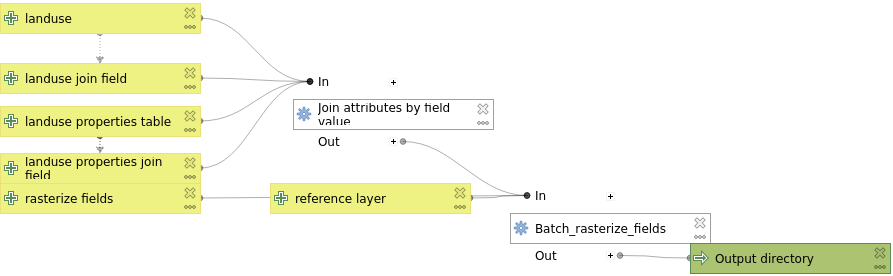
We also want our output to be automatically saved to a non-temporary location. Double click the Output directory output and set it to a location:
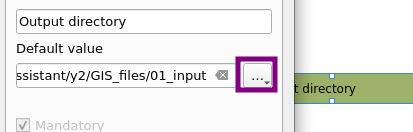
Fig. 4.2 Setting a default output for intercepted rainfall.
01_inputis a folder, not a GeoPackage.- Run the model and verify that the output has data values for all areas.
4.2.3. Follow Along: Updating Hadocha_soil
Now it is time to start working on our soil layer! Because there is a swamp (landuse) which has quite different properties than the surrounding land, we will first put that in our map
4.2.3.1. Follow Along: Adding Swamp to the Soil map
Create a new model. Name it
02 Update SoilGive it the following inputs:
 Vector Layer:
 Soil- Vector Layer:
Landuse
Now, we want to select the Swamp feature from Landuse. Drag the
Extract by Attribute
process into the modeler.Input layer:
LanduseSelection attribute:
FEATUREOperator:
=Value [optional]:
Swamp
Also give Extracted (attribute) a name and
Run
the model. Your resulting layer should only be the swamp.Note
It is good practice to run and check your model after each step/algorithm you put in. This will not really be said from now on, but we expect you to do this. Also if your final output is wrong, go back in the model and check every earlier output for an error.
Next, we want to combine our Swamp into the Soil layer. Drag a
qgisunion into the modeler with:Input layer:
SoilOverlay layer:
"Extracted (attribute)" from algorithm "Extract by attribute"
Run the model and check the output attribute table.
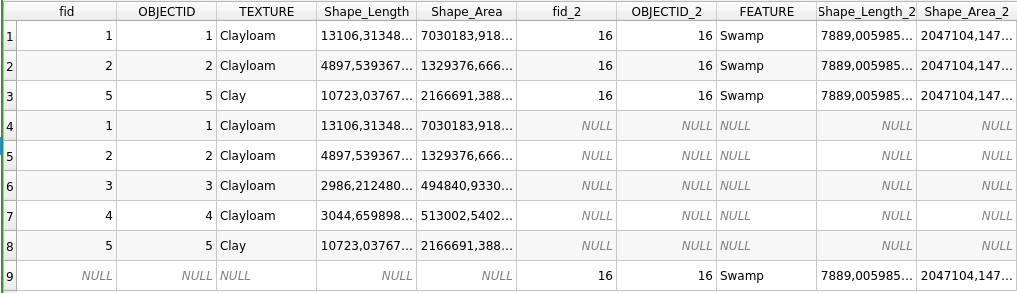
Notice that there is a field TEXTURE and a field FEATURE. In the next step, we will combine these, such that the TEXTURE for all features that have
FEATURE=='Swamp'will be Swamp.Drag in the
qgisfieldcalculator tool into the model.Input layer:
"Union" from "Union"Field name:
TEXTUREResult field type:
StringResult field length:
16This is the maximum length that the resulting field can have in charactersFormula:
IF("FEATURE"='Swamp',"FEATURE","TEXTURE")
Now, let’s break this down a bit: Double quotes (
"") indicate a field. For example,"FEATURE"will take values of'Swamp'orNULL. Single quotes ('') indicate a String. This is just a sequence of letters such as'Swamp'. TheIF()works like:IF(something is true, then this, otherwise this). The resulting attribute table should look like this:
This still has some unnecessary fields, and multiple features that have the same TEXTURE.
Drag in the
qgisaggregate operation. This is a sort of
qgisdissolve operation, but it offers more control over the
output. Fill it in like this:Input layer:
"Calculated from algorithm "Field calculator"Group by expression:
TEXTUREAggregates: Click the
 Add new field
button to add a new field. and fill it in like this:
Add new field
button to add a new field. and fill it in like this:Source expression
Aggregate Function
Name
Type
Length
“TEXTURE”
first_value
TEXTURE
Text (string)
16
Tip
in stead of adding the above fields manually, you can also Load fields from a similar layer.
Your resulting layer should have a single column named TEXTURE and look like this:

4.2.3.2. Try Yourself Join soil properties and rasterize
The only thing we need to do now, is to join the excel table and rasterize the results This is exactly the same as we did for the landuse maps, so we will give less instructions.
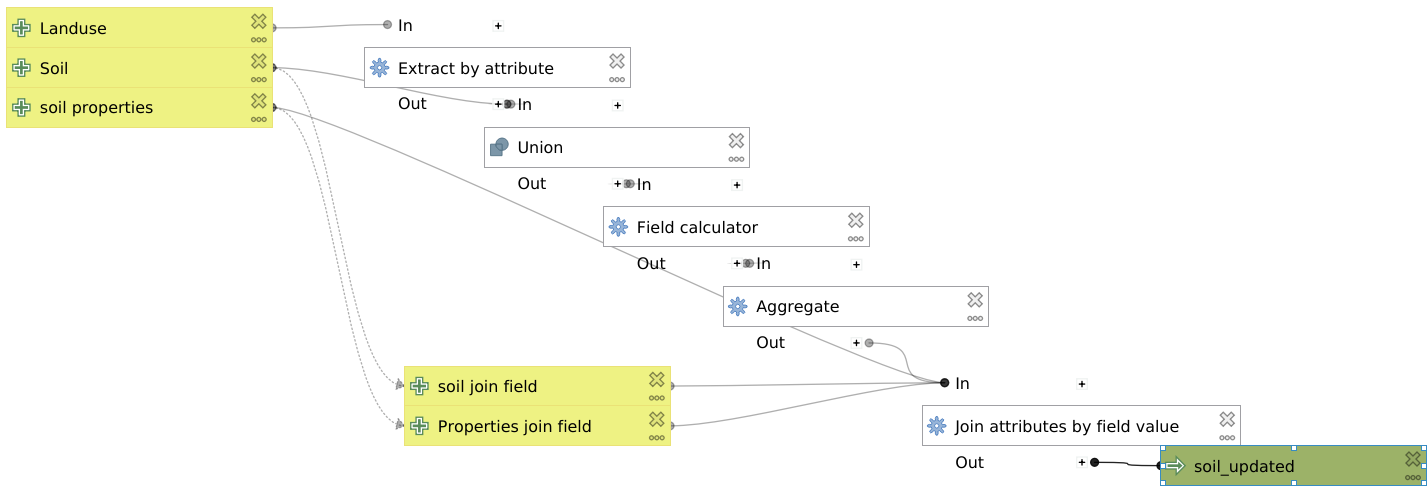
Change the model such that soil properties are joined to the map. For reference, see Joining the data.
Hint
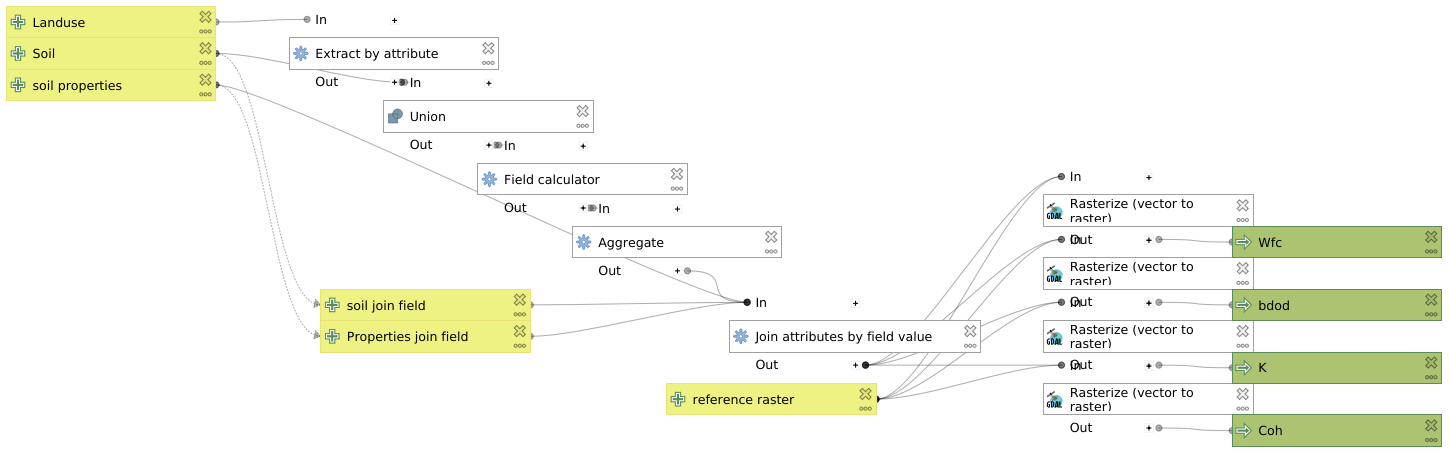
Your final model should look like this:
Finally, rasterize the results. For reference, see Rasterizing the results:
Field to use for a burn-in value [optional]
Rasterized
Description
WfcWfcSoil wetness at field capacity \(%\)
bulk_densitybdodSoil bulk density \(\frac{Mg}{m^3}\)
KKSoil detachability \(\frac{g}{J}\)
CohCohSoil cohesion \(kPa\)
Final model
Warning
Check that all values of the rasters you have created are the same
as in the Hadocha_data.xlsx file before moving on! Also, it is very
important that the rasters align exactly with Hadocha_dem,
otherwise, you will get errors in the gdalrastercalculator. This
should be good if you followed this manual.